How to Set Auto Reply on GB WhatsApp for Android 2026
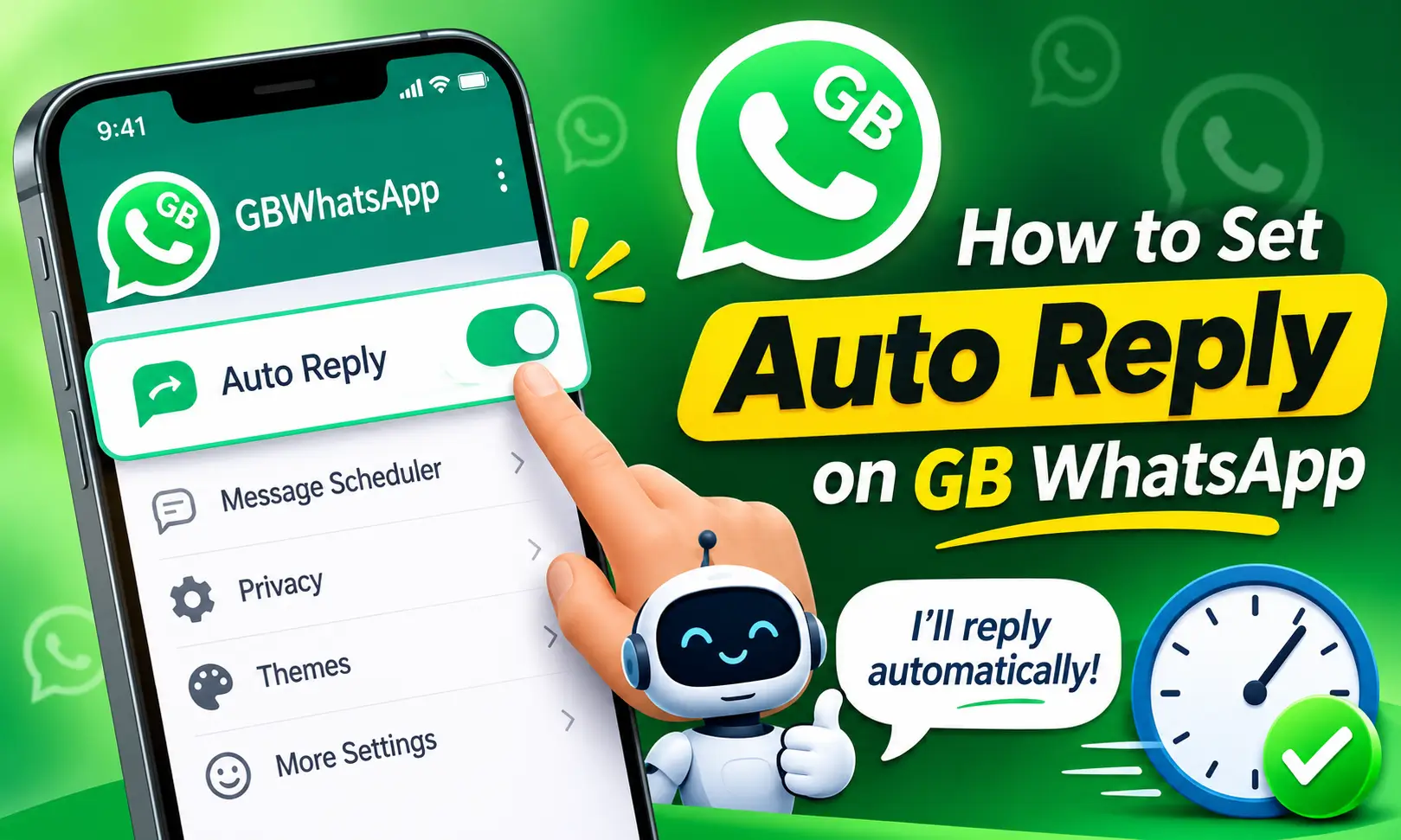
Auto Reply on GB WhatsApp lets you send automatic responses to incoming messages when you are busy, away from your phone, or unable to respond immediately. You can create a custom reply, choose which messages should trigger it, and set a specific time period for sending responses.
The setup is straightforward once you follow this complete guide with us. You will know how to set up auto reply on GB WhatsApp, configure message rules, manage existing replies, and fix common problems on Android phones.
What Is Auto Reply on GB WhatsApp?
Auto reply is a feature that automatically sends a predefined message when someone contacts you. You don’t need to type the same response again and again, you can create a rule that handles incoming messages according to your selected conditions.
For example, you can set a reply telling friends that you are busy, inform customers about your business hours, or respond automatically when someone asks about a particular service.
You are also able to control the type of incoming message that triggers a response, set a delay, and choose the hours during which the rule remains active. Also check: How to Record GB WhatsApp Calls & Is GB WhatsApp Safe.
How to Set Auto Reply on GB WhatsApp
To enable auto reply on GB WhatsApp Android, open the app and configure the feature through its settings.
Follow these steps to create your first automatic reply.
- Open GB WhatsApp: Launch the app on your Android phone and open your chat screen.
- Go to GB Settings: Tap the three-dot menu in the top-right corner and select GB Settings.
- Find Auto Reply: Look for Auto Reply Message. You will find this option under Message Tools or Automation.
- Enable the feature: Open the auto-reply settings and switch on the toggle at the top of the screen. The toggle changes color when the feature is active.
- Choose a match type: Select whether the automatic response should apply to every incoming message, messages containing particular words, or messages matching an exact phrase.
- Enter your reply: Type the message you want people to receive automatically. Keep it clear and relevant to the situation.
- Set the delay: Choose how long the app should wait before sending the response.
- Set the schedule: Choose the start and end times for the automatic reply. For example, you can configure it to operate during your working hours or when you are usually unavailable.
- Save the rule: Tap Add, and save the option shown on your screen. Confirm that your rule appears in the auto-reply list and that the main toggle is enabled.
Once configured, the rule can respond automatically when an incoming message meets your selected conditions and schedule. Test it by asking someone to send a message that matches your rule.
Understanding Auto Reply Match Types
Choosing the correct match type is important because it determines which incoming messages trigger your automatic response. GB WhatsApp builds include these three types.
1. All
The All option sends your predefined response to incoming messages without requiring a particular keyword or exact phrase.
Example: You set the message, “I’m busy right now. I’ll reply when I’m available.” Anyone who messages you while the rule is active will receive this response.
Use this option when you want a general reply rather than a response tied to a particular question.
2. Contains
The Contains option triggers a reply when an incoming message includes a specified word or phrase.
Example: If your rule looks for “price” and your reply is “Please share the product name for pricing details,” a message such as “What is the price?” can trigger the response.
This option is useful for frequently asked questions, business inquiries, and repeated requests for information. Choose keywords that are specific enough to avoid triggering the reply unnecessarily.
3. Equals
The Equals option responds when the incoming message matches your specified phrase exactly.
Example: If the configured phrase is “Office hours,” a message containing exactly “Office hours” can trigger your reply. A message such as “What are your office hours?” will not match.
Use this option when you want to respond to a specific phrase rather than every message containing a keyword.
Setting the Delay and Schedule
Two settings can make your automatic replies more useful: the response delay and the active schedule.
Response delay
The delay determines how long the app waits before sending a reply after receiving a qualifying message. A shorter delay is suitable for routine responses, while a longer delay is useful when you do not want replies to appear immediately.
For example, you could configure a brief delay before sending, “Thanks for your message. I’ll get back to you shortly.”
If responses arrive much later than expected, review the delay setting and reduce it. Keep in mind that the app’s background activity can also affect delivery.
Start and end time
The schedule controls when an automatic-reply rule should operate. If you want to use auto reply during working hours, set the appropriate start and end times.
For example, a business could configure an automatic response between 6:00 PM and 9:00 AM to let customers know that the team is unavailable outside business hours.
How to Use Auto Reply on GB WhatsApp
Knowing how to use auto reply on GB WhatsApp effectively means choosing a message that suits the situation. A short, helpful response usually works better than a long explanation.
Here are some practical examples you can adapt to your needs.
1. Automatic reply when you are busy
Use a general response when you cannot answer messages immediately.
Example message:
“I’m busy at the moment and may not be able to respond immediately. I’ll reply as soon as I can.”
Choose All if you want the response to apply broadly during the selected period.
2. Away message for personal chats
If you are travelling, attending an event, or taking time away from your phone, create a temporary reply.
Example message:
“I’m away from my phone right now. I’ll check your message and respond when I’m back.”
Set the schedule to cover the period when you expect to be unavailable.
3. Business hours and customer inquiries
A business account can use automatic replies to acknowledge messages received outside normal working hours.
Example message:
“Thank you for contacting us. Our working hours are 9:00 AM to 6:00 PM. We’ll respond to your inquiry during business hours.”
Use a suitable schedule so customers receive the information when your business is closed.
4. Keyword-based responses
If you frequently receive similar questions, create a rule based on a relevant keyword.
Example message:
For messages containing “location,” you could set the reply to: “Please tell us your preferred branch, and we’ll share the location details.”
Keyword-based rules can save time when answering recurring questions. Keep each rule focused on one subject so unrelated messages are less likely to trigger an inappropriate response.
Before relying on any rule, test it with a few different messages to confirm that the match type behaves as expected.
How to Remove Auto Reply on GB WhatsApp
You can disable automatic responses temporarily or remove an individual rule when you no longer need it.
You have to follow these steps to turn off or delete a reply:
- Open GB WhatsApp and tap the three-dot menu.
- Select GB Settings and open Auto Reply Message.
- To stop all automatic responses, switch off the main auto-reply toggle.
- To remove only one response, find the relevant rule in the list and open its editing options.
- Select the delete or remove option, then confirm the action.
- If you want to continue using other rules, make sure you remove only the one you no longer need.
Turning off the main toggle is the quickest way to pause automatic replies without deleting your saved rules. You can enable the feature again whenever you need it.
If you edit an existing rule, review its message, match type, delay, and schedule before saving your changes.
Auto Reply on GB WhatsApp Not Working: How to Fix It
If automatic replies are not being sent, the issue is often related to a disabled setting, an incorrect match condition, or restrictions on background activity. Work through these fixes one by one.
1. Check that the auto-reply toggle is on
Open the auto-reply settings and confirm that the main toggle is enabled. Also check whether the individual rule is active, if your build provides a separate control for each rule.
2. Review the schedule
Check the start and end times of the rule. If the current time falls outside the configured window, the app will not send the response.
For testing, choose a schedule that includes the current time and try again.
3. Check the match type
A rule set to Equals may not trigger if the incoming message contains extra spaces, punctuation, or different wording. Try sending the exact phrase configured in the rule.
If you want to respond whenever a message contains a particular word, use Contains instead. If you want to respond broadly, consider All.
4. Reduce the response delay
A long delay can make automatic replies appear to be broken. Open the rule, review its delay, and shorten it for testing.
Send another matching message and allow the selected delay to pass before deciding whether the feature is working.
5. Review notification and background permissions
Open your Android phone’s Settings and find GB WhatsApp under Apps. Review its notification permissions and any available background activity settings.
If notifications are disabled or background activity is restricted, the app will not process messages.
6. Check battery optimization
Some Android phones limit background activity to conserve battery. These restrictions can interfere with features that need to remain active when the app is not open.
Check the app’s battery settings and review whether background activity is restricted. If your phone offers an unrestricted or optimized battery mode, choose an appropriate setting for testing.
7. Restart the app or phone
Close GB WhatsApp completely and reopen it. If the problem continues, restart your phone and test the same rule again.
A restart can resolve temporary app or background-process issues.
8. Update to a current build
An outdated version has bugs or different settings behavior. If the feature remains unavailable or unreliable, update to the latest version.
After updating, revisit the auto-reply settings because it may change app settings.
9. Re-create the rule
If none of the previous steps works, remove the affected rule and create it again. Enter the message carefully, select the correct match type, set a suitable delay and schedule, and save the rule.
Test the new rule with a message that clearly matches its conditions. If it still fails, the issue may be related to app version rather than the settings.
Conclusion
Setting up auto reply on GB WhatsApp can help you manage incoming messages without typing the same response repeatedly. Open GB Settings, enable the feature, create a rule, and configure its message, match type, delay, and schedule.
Choose the settings that fit your needs, test the rule with a matching message, and disable or delete it when it is no longer useful. If replies fail to appear, check the schedule, match conditions, permissions, and battery restrictions first.