GB Whatsapp Not Installing? 7 Quick Fixes That Work in 2026
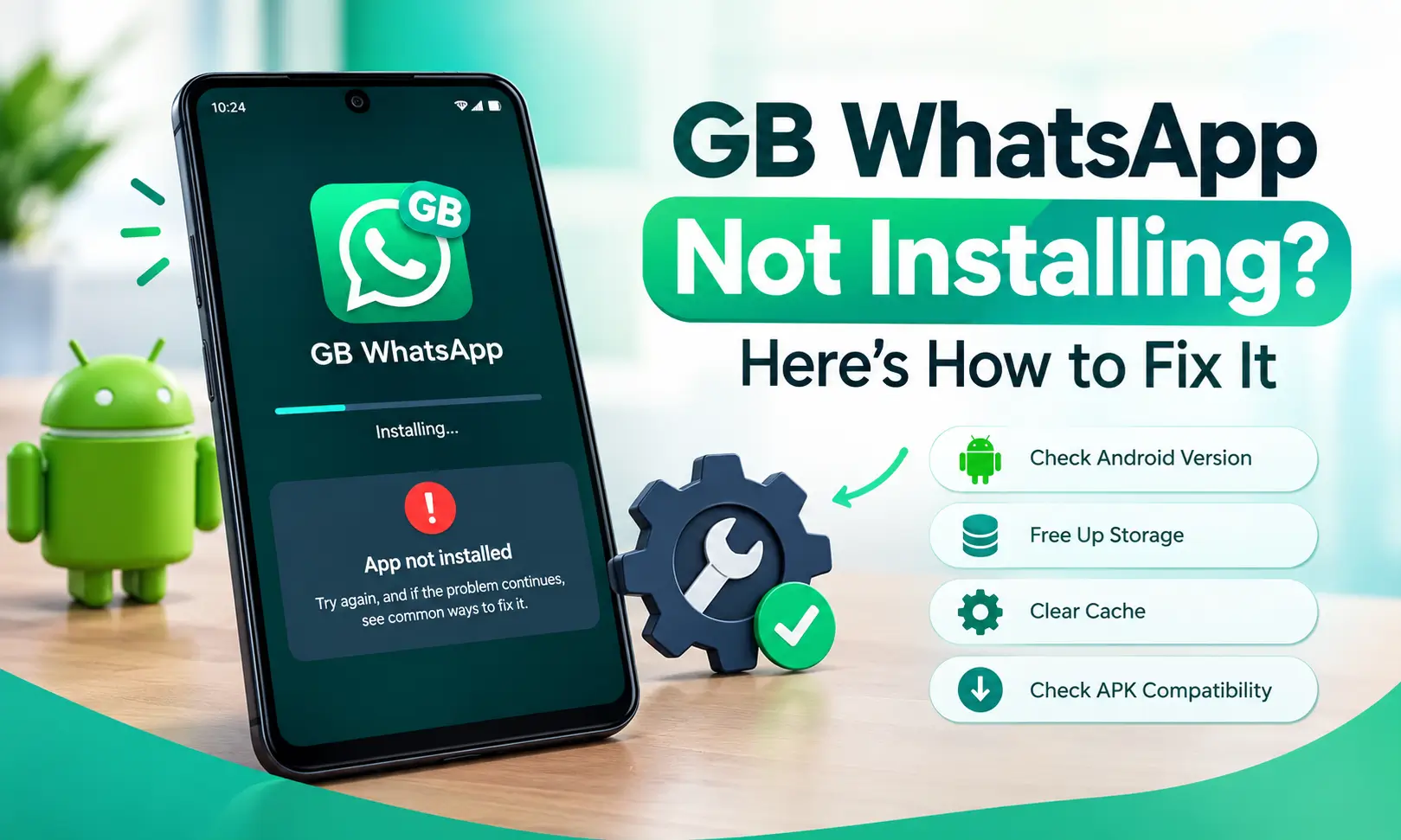
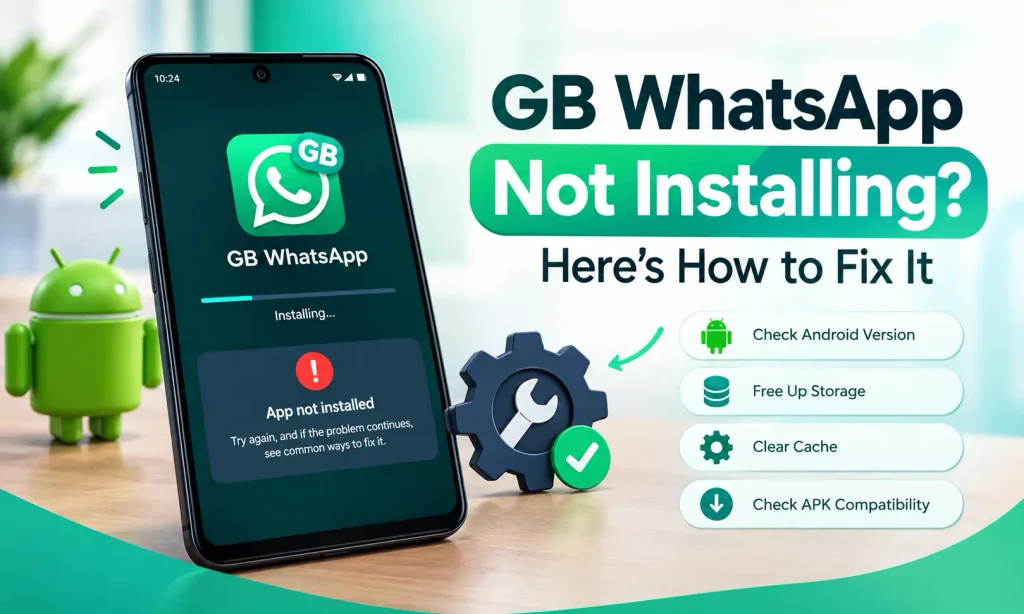
If GB WhatsApp not installing on your Android phone, the problem usually comes down to a corrupted APK file, insufficient storage, disabled installation permissions, an existing WhatsApp version, or an Android compatibility issue.
The quickest way to identify the right solution is to check the error message, remove the specific cause, and try to install the apk file again.
In this guide, you’ll find 7 practical fixes for common installation errors, including “App not installed,” “Problem parsing the package,” and “Installation blocked.” Let’s have a look at 7 common solutions for being unable to install gb whatsapp.
Why Is GB WhatsApp Not Installing?
Before changing your phone’s settings, identify what prevents the apk file to install or whether the issue involves the APK file, device compatibility, storage, or an existing app. Also read our guide on How to Add Google Account in GB WhatsApp.
| Error message | Possible cause |
| App not installed | Package conflict, signature mismatch, or insufficient storage |
| Problem parsing the package | Damaged APK File |
| Package appears to be invalid | Incomplete or corrupted apk download |
| Installation blocked | Installation permission or Google Play Protect |
| Package conflicts with an existing app | Another version with the same package name is installed |
| Installation unexpectedly failed | Installer problem, insufficient space, or incompatible APK |
These are common errors which users face while downloading gb whatsapp for android. Start with the fix that matches your message. If you do not see an error, work through the solutions below in order.
Solution 1. Allow Installation From Unknown Apps
Android normally restricts APK installations from sources outside the Google Play Store. If your browser or file manager does not have permission to install apps, the process stop with an “Installation blocked” message.
How to enable the permission
- Open Settings on your Android phone.
- Go to Apps or Security option.
- Find Install unknown apps.
- Select the browser you used to download the APK, such as Chrome, or choose your file manager.
- Enable Allow “Installation from Unknown Source”.
- Return to the downloaded APK and try installing it again.
After troubleshooting, turn this permission off again if you no longer need it.
Solution 2. Free Up Storage Space on Your Phone
Low storage is another common reason an APK installation fails. Your phone needs enough space of 100.2 MB not only for the downloaded file but also for the installation process and the app’s files.
How to fix storage problems
- Open Settings → Storage to check the available space.
- Delete unwanted videos, duplicate photos, and unnecessary downloads.
- Uninstall apps you no longer use.
- Empty the trash or recently deleted folder to clean up space.
- Restart your phone and retry the installation.
The safe habit is to keep around 1 GB of free storage while troubleshooting.
If you have plenty of free space but installation still fails, move to the next fix instead of repeatedly deleting files.
Solution 3. Delete the Damaged GB WhatsApp APK and Download It Again
A download can become incomplete if your internet connection drops, the browser stops unexpectedly, or the download process is interrupted. An APK with missing or damaged data show “Problem parsing the package,” “Invalid package,” or “Package appears to be invalid.”
Steps to fix a corrupted APK
- Open your Downloads folder or the Chromes download history.
- Delete the APK file that failed to install.
- Check your internet connection before downloading it again.
- Download the APK file completely without interrupting the process.
- Open the new APK and retry the installation.
Avoid repeatedly installing the same damaged file. A fresh download is more useful than attempting the same installation several times.
Solution 4. Resolve Conflicts With Official WhatsApp or an Older Version
One of the most frustrating problems according to reddit users occurs when Android refuses to install GB WhatsApp because another WhatsApp version is already installed.
Android identifies apps using their package names and verifies their digital signatures. If an APK attempts to update an existing app but has an incompatible package name or signing certificate, Android reject it.
This happens only when you are updating an existing GB WhatsApp installation, switching between different modified versions, or trying to install a version that conflicts with official WhatsApp.
What you should do
- Check whether official WhatsApp or another WhatsApp version is already installed.
- Determine whether the problem occurs during a fresh installation or an update.
- If you are updating GB WhatsApp, check whether the new APK is compatible with the existing installation.
- Back up your chats before considering the removal of any existing WhatsApp app.
- If a package or signature conflict remains, use gb whatsapp old version or switch to official WhatsApp rather than deleting apps blindly.
Important distinction: Two apps can coexist only when their package identities allow it.
Solution 5. Check Your Android Version and Device Compatibility
GB WhatsApp also fail to install when the APK requires a newer Android version than your phone supports, or when the file was built for a different device architecture.
If you install the latest GB WhatsApp APK on an older phone running Android 4.3 or below, the installation will fail
This is especially relevant when installing a newer release on an older phone or trying to use a build that does not support your Android configuration.
Check compatibility before installing
- Open Settings → About phone.
- Find your Android version.
- Compare it with the minimum Android version required by the latest GB WhatsApp APK.
- If your phone has a pending Android update, check Settings → System → Software update or your manufacturer’s equivalent.
- Make sure the APK matches your device’s supported processor architecture, such as the relevant 32-bit or 64-bit ARM build.
If you see a parsing error even after downloading the file again, compatibility is worth checking before trying further installation methods.
Solution 6. Clear the Package Installer Cache and Restart Your Phone
There is also a case where the APK is valid, the phone has enough storage, and the required permissions are enabled, but Android’s installer still fails. Temporary data or a stalled installation process are the responsible.
Clear the relevant cache
- Open Settings → Apps.
- Enable Show system apps from the menu.
- Find Package Installer by scrolling down.
- Open Storage and cache.
- Tap Clear cache.
- Restart your phone and try installing the apk file again.
You can also clear your browser’s cache if the download itself appears to be failing. Clearing cache is different from clearing all app data, which may remove settings or other stored information. A simple restart can also resolve temporary installer glitches.
Solution 7. Check Whether Google Play Protect Is Blocking Installation
Google Play Protect checks apps for potentially harmful behavior, including apps installed from sources outside the Play Store. A warning appears when you attempt to install an unofficial app.
If you see a Play Protect warning, read the message and check the file’s source before proceeding. Do not assume every warning is a false positive.
What to Do If Official WhatsApp Will Not Install From the Play Store
If official WhatsApp is not installed from the Play Store, the troubleshooting process is slightly different.
Try these steps:
- Open the Google Play Store and check whether WhatsApp is compatible with your phone.
- Check your available storage and free up space.
- Go to Settings → Apps → Google Play Store → Storage and clear the cache.
- If the problem continues, use the available option to clear Play Store data.
- Check your internet connection and ensure background data is allowed for the Play Store.
- Restart your phone and try installing WhatsApp again.
If you still can’t install WhatsApp on your Android phone, consult the official WhatsApp Help Center or Google Play Help for the specific error.
Conclusion
When GB WhatsApp not installing, start by checking installation permissions, free storage, and the integrity of the APK. Then investigate package conflicts, signing mismatches, Android compatibility, and temporary installer problems.
The key is to match the fix to the error instead of repeating the same steps. If the APK remains incompatible or Android continues to block it, switching to official WhatsApp is the more reliable option.