How to Add Google Account in GB WhatsApp (Easy Steps)
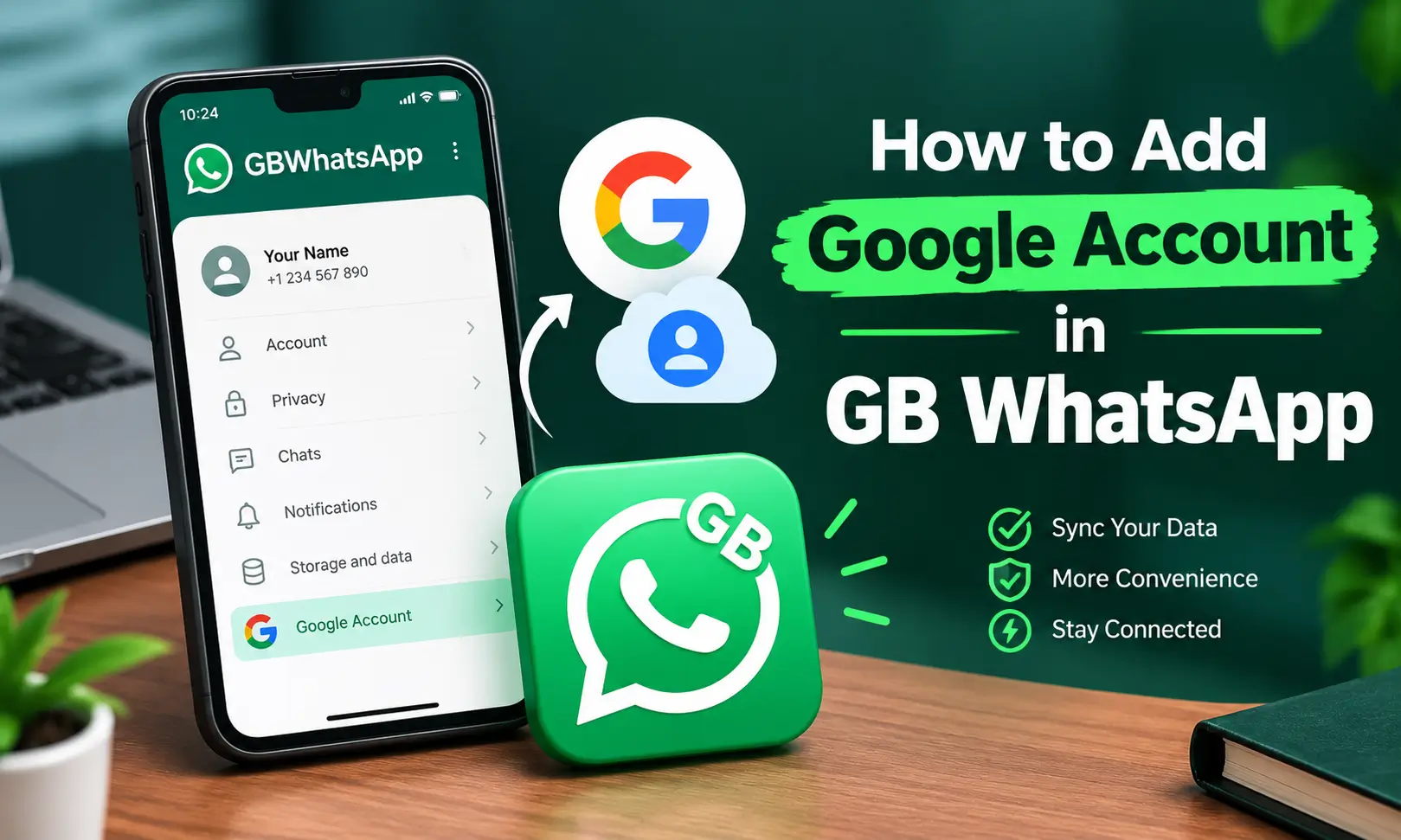
To add a Google account in GB WhatsApp, open the app, go to Settings → Chats → Chat backup, and select your Google account. If your Gmail address is not listed, add it through your Android phone’s settings first. You can also add a Gmail address for two-step verification to help recover your PIN.
The exact menu names might be different due to your different device and latest version. Here is how to set up both options and troubleshoot common problems.
What You Need Before Adding a Google Account
Before starting, make sure you have:
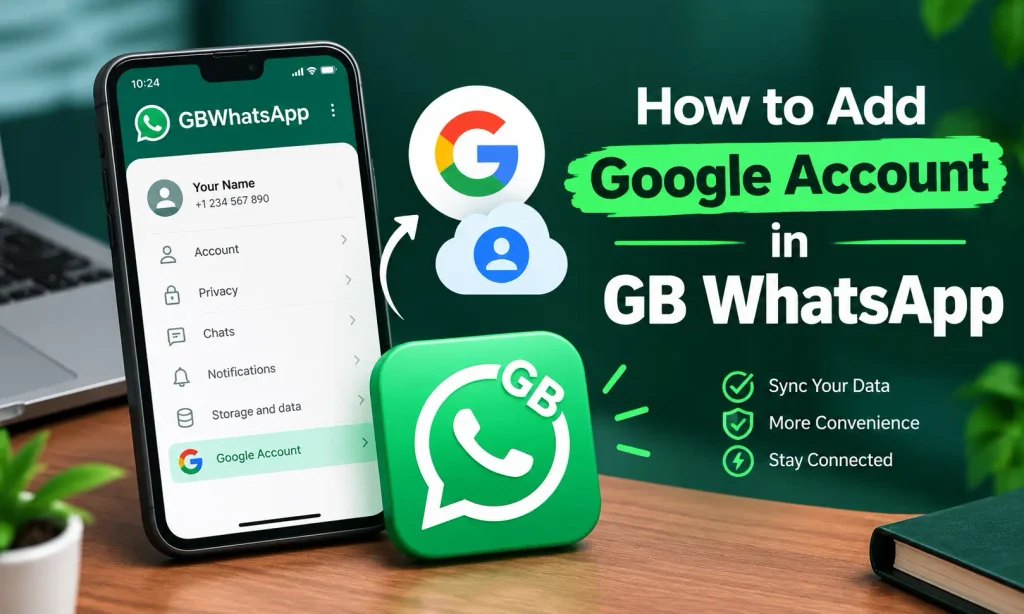
If your Google account is not already connected to your phone, open Android Settings → Accounts or Passwords & accounts, select Add account → Google, and follow the sign-in instructions. Once the account is added, reopen GB WhatsApp and check the backup settings.
How to Link Google Account in GB WhatsApp for Chat Backup
Follow these steps to link your Google account to GB WhatsApp for chat backup.
- Open GBWhatsApp on your Android phone.
- Tap the three-dot menu in the top-right corner.
- Select Settings from the menu.
- Tap Chats to open the chat settings.
- Select Chat backup to access the backup options.
- Tap Google Account or Account, depending on your app version.
- Select your Gmail address from the available accounts. If it is missing, tap Add account and sign in if that option is available.
- Allow the requested permissions if the app displays a Google account access prompt.
- Choose your backup frequency, such as daily, weekly, monthly, or manual backup, if these options are available.
- Select your network preference and decide whether to include videos.
- Tap Back up to start the process.
- Wait for the backup to finish before closing the app or switching phones.
Before linking your Google Account with GB WhatsApp, you should also understand its potential privacy and security risks. Read our guide on Is GB WhatsApp Safe to learn more.
How to Add Gmail for Two-Step Verification
Adding a Gmail address for two-step verification is different from linking Google Drive for chat backups. This email is used for account recovery if you forget your verification PIN.
To add a recovery email:
- Open GB WhatsApp and tap the three-dot menu.
- Go to Settings → Account → Two-step verification.
- Tap Enable if two-step verification is not already active.
- Create a six-digit PIN and enter it again to confirm.
- Add your Gmail address when prompted for a recovery email.
- Confirm the email address and complete any verification steps shown on the screen.
Keep your PIN secure by saving a screenshot and make sure the recovery email is accessible. If two-step verification is already enabled, open its settings and look for an option to update the email address.
How to Restore Chats After Adding a Google Account
Adding a Google account does not automatically restore old conversations. A compatible backup must already exist, and the app must be able to access it.
If you are setting up WhatsApp again, use the same phone number and Google account associated with the original backup. Follow the available restore prompts during setup.
However, a Google Drive backup created through official WhatsApp may not be recognized by GB WhatsApp, and backups created by GB WhatsApp may not upload to Drive reliably. Do not assume that selecting the same Gmail address guarantees that your chats will be restored.
If you still have access to your old phone, preserve your existing chats and create a separate local backup before attempting a transfer.
Why Is My Google Account Not Showing in GB WhatsApp?
If your Gmail address does not appear in the backup list, try these fixes in order.
1. Add the account to Android. Open your phone’s Settings, find Accounts or Passwords & accounts, and confirm that the correct Google account is listed.
2. Restart GB WhatsApp. Close the app completely and reopen the Chat backup menu.
3. Check Google Play Services. Make sure Google Play Services is enabled and updated where an update is available.
4. Check your internet connection. Switch between Wi-Fi and mobile data to see whether the account list loads correctly.
5. Clear the app cache. Go to Android Settings → Apps → GB WhatsApp → Storage and select Clear cache. Avoid Clear data because it can remove local app data.
If the Google account still does not appear, your GB WhatsApp build may not support the required Google account integration. If you want to explore another way to use the app, check out our guide on GB WhatsApp on PC to learn more about using it on your computer.
Why Can’t I Log In to GB WhatsApp?
A Whatsapp gb login problem occur because of an unstable connection, a temporary verification issue, outdated Google Play Services, or compatibility problems with the modified app.
Try the following:
If the message says “login failed” specifically when connecting Google Drive, the problem involve unsupported backup integration rather than your Gmail password.
How to Link a Device on GB WhatsApp
Linking a device is different from adding a Google account. A Google account manages backup access, while device linking connects a supported companion device to your messaging account.
If your GBWhatsApp version provides a Linked devices option, open it and follow the on-screen instructions. If a QR code is displayed, use the supported linking process on the other device to scan it.
This feature is not available in all gb whatsapp versions.
Can You Add a Third Account in GB WhatsApp?
The number of accounts you can use depends on your app setup. GB WhatsApp offer an additional account alongside an official WhatsApp installation, but it does not guarantee support for three accounts in one app.
A third account require a separate supported app instance, and some cloning methods can cause notification, verification, or backup issues. Adding another Google account alone will not create another WhatsApp account.
Why Is GBWhatsApp Backup Not Working?
If your GB WhatsApp backup stays at 0% or fails, check your connection, available Google Drive storage, and Google Play Services. Restart the phone and retry if the backup option is supported.
If Google Drive backup remains unavailable, use a local backup as a fallback. Open the app’s Chat backup settings and create a local backup option for safer side.
Copy the relevant backup files to a computer or another secure storage location before reinstalling the app or changing phones. Folder paths and backup formats vary by version, so keep the original files intact.
Conclusion
To add a Google account in GB WhatsApp, start with Settings → Chats → Chat backup and select your Gmail address if the option is supported. For PIN recovery, use the separate two-step verification email setting.